Using PoseAI with Unreal Engine
The advanced sample project demonstrates our recommended method for connecting the app to Unreal for gameplay and highlights several features of the plugin and capture technology.
For conventional in-editor LiveLink use, see here. Continue below for the basics of adding Pose AI to an existing project.
Connecting with UE4 with our helper nodes
Install the PoseAI UE4 LiveLink plugin
Install the PoseAILiveLink plugin from the Unreal Marketplace or copy the folder into the [Your Project Name]/Plugins/ folder. Make sure the plugin is enabled from within the editor (Edit/Plugins). This may require restarting the project.
Go to project settings->plugins->UDP Messaging. Make sure enable UDP transport is checked. If this is not available please enable Epic’s UDP Messaging plugin from Edit->Plugins as LiveLink is unlikely to work without it.
NOTE: MacOS Unreal
On MacOS the marketplace build of the Pose AI plugin may not work when installed as usual to the Engine/Plugins/Marketplace/ folder, and when enabled can prevent the Engine from opening a project.
A simple workaround is copying the PoseAILiveLink plugin folder instead to <yourprojectname>/Plugins/. Once this is done uninstall the plugin from the Engine and it should work as intended. Alternatively rebuilding from source may work as well.
We are trying to resolve this with Epic as we understand this may be a known issue within the engine.
Add the PoseAIMovementComponent to the player blueprint
Open the third person player controller blueprint. Add the PoseAIMovementComponent to the character.
This will enable various motion capture events and provides helpful nodes to mange LiveLink sources for your character.
Add a source at Event Begin Play, close at Event End PlayӦ
A LiveLink source represents a motion capture input stream. Each Pose Camera App will be a unique source, and each source must be set up on a unique port.
Drag the character’s PoseAI Movement Component into the blueprint, and then drag off the node and create an AddSourceNextOpenPort node. Connect it to Event Begin Play. This will automatically add a source on the next free port at the beginning of play.
You can use an AddSource node instead if you want to set the port manually, but in this case make sure if you use multiple nodes (i.e. multiple characters), you give each a unique source.
Create a CloseSource node by dragging off the PoseAIMovementComponent and connect it to Event End Play. This will close and free up the port and is particularly important when using the Editor (as LiveLink sources persist outside of gameplay and if you don’t close you will keep adding sources on new ports, and need to change your phone settings to point at the right one).
Modify the animation blueprint to include LiveLink
Your animation blueprint needs to pull in the animation data from Pose Camera.
Open the animation blueprint for your character. In the Event Graph, get the player object, cast it to your blueprint class name so you can access the PoseAIMovementComponent. From the component use the GetSubjectName method to store the LiveLinkSubjectName as a new variable in your blueprint.
In the AnimGraph add a Live Link Pose node and connect to the blueprint’s output pose. Set the LiveLink source on the node to your subject name variable. Select the Live Link Pose node and in details set retarget asset to “PoseAILiveLinkRetargetRotations” - this preserves your mesh asset’s skeletal dimensions but uses the streamed joint rotations and root transform to animate.
You can blend with conventional animations to suit your gameplay. See our advanced demo for an example where we blend with a state machine depending on gameplay mode and fade back and forth between mocap and conventional depending on the player’s visibility on camera.
Connect Pose Camera on your phone
Open the PoseCamera app on your phone. Go to settings (gear icon) and input the IP address of the computer running the Unreal Engine and the port number selected when configuring LiveLink (the first panel of LiveLink will display the first local host IP address detected but if you have multiple adapters this may not be correct). Make sure your phone and the computer are on the same local network.
Close settings on your phone. The app should show the IP address you entered at the bottom of the main screen. Tap to connect. When successful the phone app should display “Unreal LiveLink” in place of the IP address.
Unsuccessful? Try our troubleshooting page for tips resolving common connection issues
Begin the stream
Once connected the phone app should offer “Tap to Stream”. Tap and the phone should switch to camera preview mode.
Within Unreal you should see your phone’s name in the bottom LiveLink panel and will show green when it is streaming detected poses.
Aim your camera at the subject
Place your phone appropriately to capture your target space with an unobstructed view. For example, in Desktop mode you might place your phone underneath your monitor or in Room mode on your AV console. You can toggle between front/back camera. You can even aim your phone camera at media playing on another device.
Make sure the camera can see most of the target. For Room or Portrait ensure the full body, head to feet, is visible. For Desktop mode ensure the camera can see the head to pelvis and ideally both elbows. The segmented human icon overlaying camera preview turns blue when a subject is visible and shows which limbs are currently poseable.
(Optional) Use mocap events for gameplay
In your character blueprint, select the PoseAIMovementComponent. You should have many usable events, such as OnJump, OnCrouch, OnFootstep which you can use for gameplay.
You can also drag special StepCounter objects from the component, such as “Footsteps”, which tracks the number of step events and generates an input speed which can be fed into the conventional character controller. Please see our advanced demo for an example.
Animating a character
Create an Animation Blueprint
Create or modify an animation blueprint for your character’s skeleton (i.e. UE4_Mannequin).
Add a Live Link Pose node
In the AnimGraph of the animation blueprint add a Live Link Pose node and connect to the blueprint’s output pose. Set the LiveLink source on the node (i.e. “My Iphone”).*
If you do not see a source then you have not connected LiveLink successfully. Please review our tips for connecting Pose Camera or read the official Unreal Documentation for LiveLink.
Set retargetting for PoseAI
Select the Live Link Pose node and in details set retarget asset to “PoseAILiveLinkRetargetRotations” - this preserves your mesh asset’s skeletal dimensions but uses the streamed joint rotations and root transform to animate.
(Optional) Customize retargetting
For better results you can create a custom instance of “PoseAILiveLinkRetargetRotations” for each character, setting different values for the scaleTranslation variable and assign to the the character’s individual animation blueprint. This variable adjusts the root motion and pelvis height to accommodate different sized skeletons and may help avoid the mesh penetrating the ground.
Compile
Compile and, if you are currently streaming, the preview skeleton should follow the PoseCamera movements.
Set your character to use the animation blueprint
Open your character blueprint and select the Mesh component. In the Details panel set Animation/Animation Mode to Use Animation Blueprint. Set Animation/Anim Class to the blueprint you created or modified in the first step.
Your character should now be driven by Pose Camera at runtime.
(Optional) Add the LiveLink Skeletal Animation component to Character
In the components panel click on Add Component and add the LiveLink Skeletal Animation component to your character. This will also update the character in the editor with the animation stream. Check the character viewport while streaming to see your character animate.
(Optional) Create a blend for Desktop camera mode
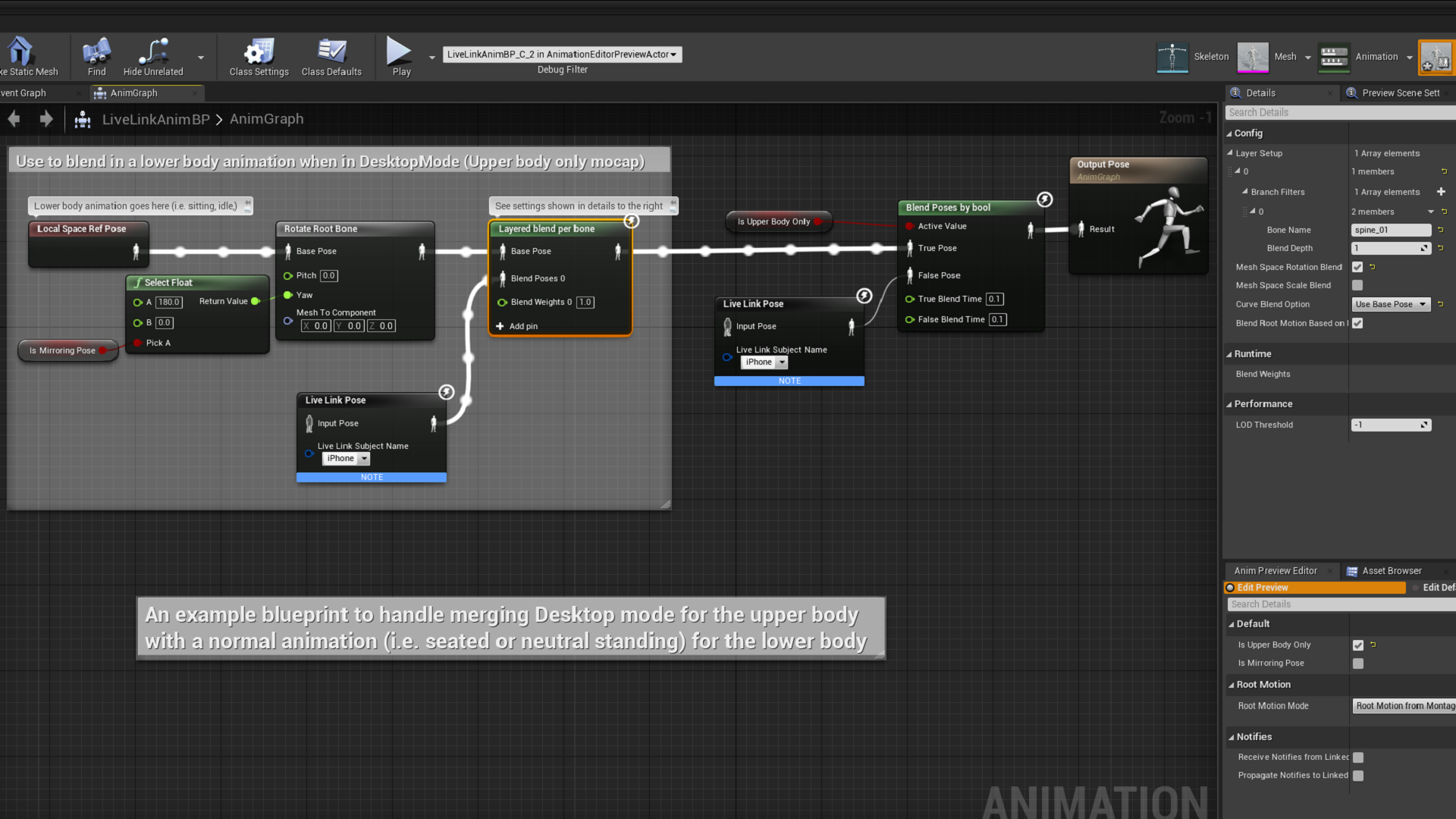
If you are using Desktop camera mode, Pose Camera will only stream the upper body. You can use blend pose to create the appropriate animation for the lower body, for example idle standing or a sitting animation. If the stream is in mirror mode, you will likely want to rotate the lower body by 180 degrees as well.
Here is an example of an AnimGraph which can switch between animation modes based on boolean values.
Recording animations
Setup plugin and character
Follow the steps outlined in this documentation to setup the plugin and your character using UE4 or Mixamo skeletons (Please see the note below regarding MetaHuman rigs).
Add the LiveLink component to your character
If you did not already do the optional step in the character setup guide, add the LiveLink Skeletal Animation component to your character by clicking on +Add Component in the components panel.
This will allow you to record animations while in the editor (otherwise animations will only record while in Play mode).
Add your character to the world
Drag your character blueprint into the viewport to add it to the level.
Record with Take Recorder
Open Window/Cinematics/Take Recorder. Select +Source -> From Actor -> YourCharacter (from the previous step).
Click on the red circle at the top of Take Recorder to begin recording (there will be a countdown). When finished click the square stop button.
Open your animation and inspect
By default each Take will be saved in subdirectories under Contents/Cinematics. Find the folder for your take, open the Animation subfolder and you should find an animation sequence capturing your streamed animation.
(Optional) Export your animation to FBX
Unreal allows you to export animation sequences into FBX, to allow editing with other software. From the menu select Asset->Export to FBX->Animation Data
[Note] Recording MetaHuman rig animations
While the plugin successfully animates MetaHuman rigs at runtime and in the editor, currently using the Unreal Engine’s Take Recorder to record MetaHuman animations via our livelink plugin can be problematic, with artificats and warping of some transforms.
Other users have reported similar issues on the Unreal Forums with MetaHuman and Take Recorder. This may be addressed by the MetaHuman team at some point (MetaHuman is still in beta). Modifying translation retargetting settings on the skeletal rig may improve the results but in our tests we still had warping on some body parts.
Tips for packaging builds
Try from a C++ project
We have only successfully packaged LiveLink with C++ projects. For blueprint only projects you may need to add a blank C++ class to your project and compile to switch it to C++ mode, and you will need Visual Studio installed.
Configure project settings
Different settings may work for you, but we use: Edit->Project Settings, then Project->packaging: build=Always, Full Rebuild=True. Plugins->udpsettings->EnabledByDefault=True. EnabledTransport=True
Try to build cleanly
We usually delete the intermediate and saved folders just to make sure, and if necessary potentially close Unreal and delete any binaries (plugin and project).
Dont forget to apply a LiveLink preset in game.
You should create a LiveLink preset with your source setting and have one of your blueprints use the “Apply To Client” node at the beginning of play. This configures the source as a runtime equivalent to launching the livelink GUI in the editor.
And if that is not working…
Try building and launching your project from Visual Studio using the DebugGame solution configuration. Make sure to first Bake your Content for Windows from the UE File menu.
We find in some cases running Visual Studio clears out whatever in UAT was messing with packaging.